
How to Find Out Who Hosts a Website (5 Methods)
Learn how to find out who hosts a website using 5 proven methods — from instant hosting checker tools to WHOIS, DNS, and IP lookups. Try it free.

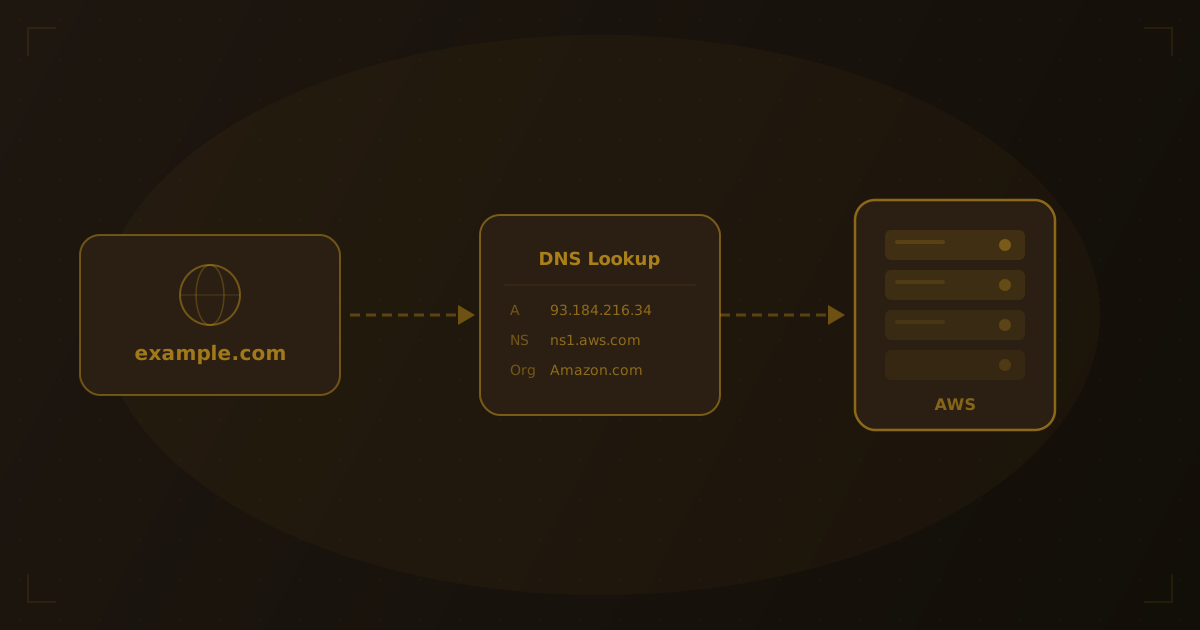
Whether you're researching a competitor, vetting a potential partner, or troubleshooting your own site, knowing how to find out who hosts a website is a useful skill. We've used every method in this guide across hundreds of lookups, and the hosting provider behind a domain affects its speed, uptime, security, and scalability — finding that information is easier than you might think.
Quick Answer: The fastest way to find a website's hosting provider is to use a hosting checker tool. Enter any domain, and it resolves DNS records, identifies the IP address, and maps it to the hosting company — all in seconds. You can also use WHOIS lookups, DNS queries, IP geolocation, or browser developer tools to get the same information manually.
Why Would You Want to Know Who Hosts a Website?
Before diving into the methods, here are the most common reasons people want to find a website's hosting provider:
- Competitor research — Discover the infrastructure behind fast, reliable sites in your niche
- Sales prospecting — Hosting and agency companies use this data to identify leads
- Troubleshooting — Diagnosing downtime or performance issues often starts with identifying the host
- Migration planning — Understanding your current setup is the first step before switching providers
- Security analysis — Knowing the host can reveal shared hosting vulnerabilities or CDN configurations
Method 1: Use a Hosting Checker Tool (Fastest)
The simplest way to check who hosts a site is with a dedicated hosting checker. These tools automate the entire process — DNS resolution, IP lookup, and provider identification — into a single query.
How it works
- Enter the domain name (e.g.,
example.com) - The tool resolves DNS records to find the server's IP address
- It queries IP geolocation and WHOIS databases to identify the hosting company
- Results display the hosting provider, IP address, server location, and more
Try it yourself
Try it yourself
Check any website's hosting
Enter a domain or IP to see hosting provider, DNS records, and more.
A good hosting checker also reveals additional details like SSL certificate information, nameservers, and DNS records — giving you a complete picture of a site's infrastructure in one lookup.
Method 2: WHOIS Lookup
WHOIS is a public protocol that returns registration data for domain names and IP addresses. It's been the traditional way to look up hosting information since the early days of the internet.
How to run a WHOIS lookup
- Go to a WHOIS lookup tool or use the command line
- Enter the domain name you want to investigate
- Look for fields like Registrar, Name Server, and Hosting Provider
What to look for in WHOIS results
| Field | What It Tells You |
|---|---|
| Registrar | Where the domain was registered (e.g., Namecheap, GoDaddy) |
| Name Servers | Often reveal the hosting provider (e.g., ns1.digitalocean.com) |
| Registrant Org | The organization that owns the domain |
| Updated Date | When the domain record was last modified |
Limitations
Many domain owners enable WHOIS privacy protection, which replaces personal details with proxy information. In these cases, the registrar is still visible, but the actual owner and sometimes the hosting provider are obscured. The nameserver fields, however, typically remain unmasked and are your best clue.
Method 3: DNS Lookup
A DNS lookup reveals the nameservers and IP addresses associated with a domain. Since nameservers are often operated by the hosting provider, this method frequently identifies the host directly.
How to check DNS records
- Use a DNS lookup tool or run
nslookup example.comin your terminal - Check the NS (nameserver) records — these often contain the hosting provider's name
- Check the A record — this gives you the server's IPv4 address, which you can trace to a host
Common nameserver patterns
Nameservers follow predictable naming conventions that reveal the provider:
ns1.wordpress.com→ WordPress.com hostingdns1.p01.nsone.net→ NS1 (often used by enterprise hosts)ns-cloud-a1.googledomains.com→ Google Cloudns1.digitalocean.com→ DigitalOceanns1.vercel-dns.com→ Vercel
For a deeper understanding of how DNS works, see our guide on what DNS is and how it works.
Method 4: IP Address Lookup
Every website is served from a server with an IP address. By resolving a domain to its IP and then looking up that IP, you can identify the hosting company that owns the server.
Step-by-step IP lookup
- Find the website's IP address using an IP lookup tool,
ping, ordig - Enter the IP into an IP geolocation or WHOIS database
- The result shows the organization that owns the IP block — this is typically the hosting provider or data center operator
Example
Running ping example.com might return 93.184.216.34. Looking up that IP reveals it belongs to Edgecast (Verizon Digital Media), indicating the site uses a CDN.
When IP lookup gives unexpected results
If a site uses a CDN (Content Delivery Network) like Cloudflare, Fastly, or AWS CloudFront, the IP address resolves to the CDN's network — not the origin hosting provider. In our testing, roughly half of the domains we check return a CDN IP rather than the origin. In these cases, combine the IP lookup with DNS and WHOIS data for a more complete picture.
Method 5: Browser Developer Tools
You don't always need external tools. Your browser's built-in developer tools can reveal hosting information through HTTP response headers.
How to check with dev tools
- Open the website in Chrome, Firefox, or Edge
- Press
F12orCtrl+Shift+I(Windows) /Cmd+Option+I(Mac) to open developer tools - Go to the Network tab
- Reload the page and click on the first request (the main document)
- Inspect the Response Headers
Headers that reveal hosting info
| Header | What It Reveals |
|---|---|
Server | Web server software (e.g., nginx, Apache, cloudflare) |
X-Powered-By | Application framework (e.g., Express, PHP/8.2) |
X-Cache | CDN cache status (e.g., HIT from cloudfront) |
Via | Proxy or CDN intermediaries |
CF-Ray | Cloudflare-specific identifier (confirms Cloudflare usage) |
This method works best as a supplement to other approaches. From our experience, headers confirm CDN usage and server software but rarely name the hosting provider directly.
Which Method Should You Use?
Each method has strengths depending on your situation:
| Method | Speed | Accuracy | Best For |
|---|---|---|---|
| Hosting Checker | Instant | High | Quick, reliable answers |
| WHOIS | Fast | Medium | Domain registration details |
| DNS Lookup | Fast | High | Identifying nameserver-based hosting |
| IP Lookup | Moderate | Medium | Tracing server ownership |
| Dev Tools | Moderate | Low | Confirming CDN and server software |
For most people, a hosting checker tool is the best starting point. It combines DNS resolution, IP lookup, and provider identification into a single step — no technical knowledge required.
Frequently Asked Questions
Can I find out who hosts a website for free?
Yes. All five methods described in this article are free. Online hosting checker tools, WHOIS databases, DNS lookups, and browser developer tools cost nothing to use.
What if the website uses Cloudflare: can I still find the host?
When a site uses Cloudflare or another CDN, the IP address points to the CDN rather than the origin server. WHOIS and DNS records may still reveal the actual hosting provider through nameserver data, but in some configurations the origin host is fully masked.
Is it legal to look up who hosts a website?
Yes. WHOIS data, DNS records, and IP information are publicly available by design. Looking up this information is standard practice for network administration, security research, and competitive analysis.
What's the difference between a registrar and a hosting provider?
A registrar is where you buy and manage your domain name (e.g., Namecheap, Google Domains). A hosting provider is where your website's files and databases live (e.g., Vercel, DigitalOcean, AWS). They can be the same company, but often aren't.
Looking Ahead
Identifying hosting providers is getting more complex as the infrastructure landscape evolves. Serverless platforms and edge hosting distribute workloads across global networks, making it harder to pin a site to a single provider. Multi-cloud architectures — where a company uses AWS, GCP, and Azure simultaneously — further blur the lines. AI-powered infrastructure detection tools are emerging to keep pace, analyzing patterns across DNS, headers, and IP data to accurately classify even the most distributed setups.
Wrapping Up
Finding out who hosts a website takes seconds with the right approach. A dedicated hosting checker gives you the fastest, most complete answer — combining DNS, IP, and provider data in one lookup. For deeper investigation, WHOIS queries, DNS lookups, IP traces, and browser dev tools each add another layer of detail.
Try entering any domain into our hosting checker to see the full picture — hosting provider, DNS records, SSL certificate, IP geolocation, and more — all in a single search.
Related Articles
Written by
Piotr KulpinskiFounder of Hosting Checker and a web developer with over a decade of experience in DNS, hosting infrastructure, and domain management. Piotr builds tools that help developers and site owners understand their web stack.