
How to Check If a Website Has SSL (4 Easy Methods)
Learn how to check if a website has SSL with 4 easy methods — browser padlock, SSL checker tools, command line, and certificate transparency logs.

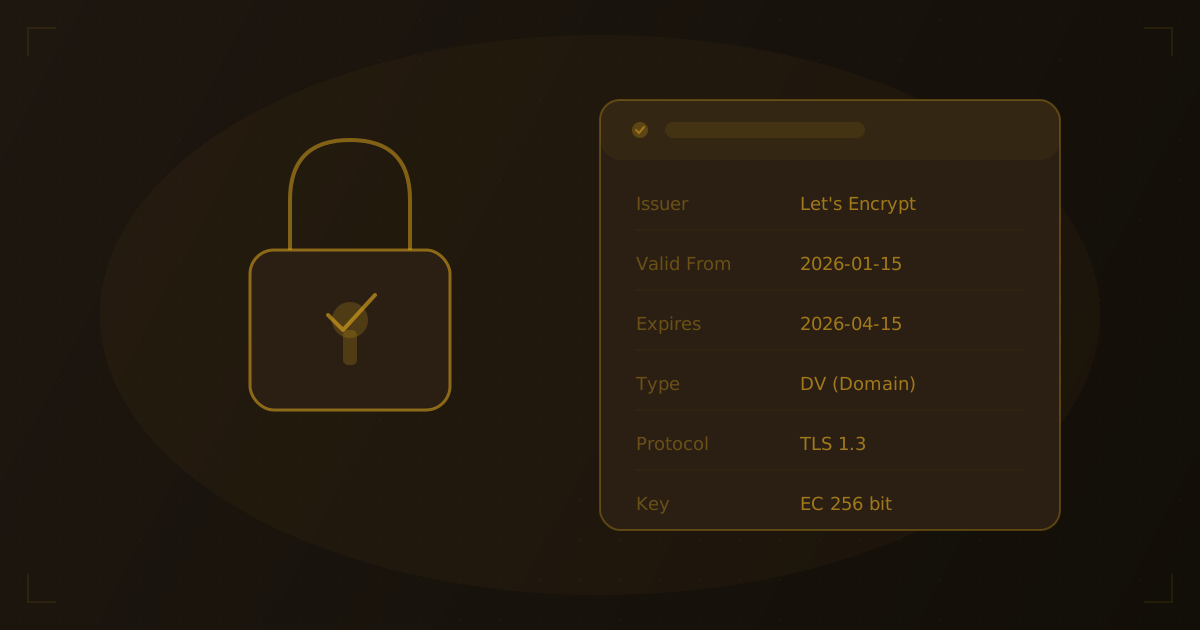
Before entering a password, credit card number, or any personal information on a website, you should verify that the connection is secure. Knowing how to check if a website has SSL protects you from data interception and helps you evaluate whether a site takes security seriously. In our testing across thousands of domains, we still find a surprising number of sites with expired or misconfigured certificates.
Quick Answer: The quickest way to check if a website has SSL is to look at the browser address bar. A padlock icon and
https://prefix mean the site has a valid SSL/TLS certificate. For detailed certificate information — issuer, expiration date, and certificate type — use an SSL checker tool or inspect the certificate in your browser.
What Is SSL/TLS?
SSL (Secure Sockets Layer) and its successor TLS (Transport Layer Security) are cryptographic protocols that encrypt the connection between your browser and a web server. When a website has a valid SSL/TLS certificate, all data transmitted between you and the server is encrypted — making it unreadable to anyone who intercepts the traffic.
Although TLS replaced SSL years ago, the term "SSL" is still widely used to refer to both protocols and the certificates that enable them.
Why SSL matters
- Data encryption — Passwords, credit cards, and personal data are encrypted in transit
- Authentication — The certificate verifies the server's identity, preventing impersonation
- SEO ranking signal — Google has used HTTPS as a ranking factor since 2014
- Browser trust — Modern browsers flag HTTP sites as "Not Secure," which drives visitors away
- Compliance — PCI DSS, GDPR, and other regulations require encrypted data transmission
Method 1: Check the Browser Address Bar
The fastest way to check a website's SSL status is to look at the address bar in your browser. Every major browser provides visual indicators.
What to look for
| Indicator | Meaning |
|---|---|
🔒 Padlock icon + https:// | Valid SSL certificate — connection is encrypted |
| ⚠️ "Not Secure" warning | No SSL certificate or the certificate is invalid |
| 🔒 Padlock with company name | Extended Validation (EV) certificate (less common now) |
| ⚠️ Padlock with warning triangle | Mixed content — some resources loaded over HTTP |
Step-by-step
- Navigate to the website in Chrome, Firefox, Safari, or Edge
- Look at the left side of the address bar
- If you see a padlock icon, the site has SSL
- Click the padlock to view basic certificate details
Viewing certificate details in Chrome
- Click the padlock icon in the address bar
- Click "Connection is secure"
- Click "Certificate is valid"
- A window opens showing the issuer, validity period, and subject
This gives you a quick overview, but for a thorough check — especially if you manage websites — you'll want more detailed tools.
Method 2: Use an SSL Checker Tool
An SSL checker tool gives you a complete breakdown of a website's certificate that goes far beyond the browser padlock.
What SSL checker tools reveal
- Certificate issuer (e.g., Let's Encrypt, DigiCert, Sectigo)
- Certificate type (DV, OV, or EV)
- Expiration date and days remaining
- Certificate chain (root → intermediate → leaf)
- Protocol version (TLS 1.2, TLS 1.3)
- Cipher suite in use
- Subject Alternative Names (SANs) — all domains covered by the certificate
How to use the Hosting Checker SSL tool
- Go to the SSL Checker tool
- Enter the domain name (e.g.,
example.com) - Review the certificate details, chain, and protocol information
Try it yourself
Check any website's hosting
Enter a domain or IP to see hosting provider, DNS records, and more.
Our hosting checker performs a full TLS handshake with the server and returns certificate details alongside DNS records, IP information, and hosting provider data. We've found this combined approach catches issues that single-purpose SSL checkers often miss, like certificate chain problems or mismatched SANs.
Method 3: Command Line Methods
For developers and system administrators, the command line offers the most control when checking SSL certificates.
Using OpenSSL
The openssl command is the standard tool for inspecting SSL/TLS certificates:
openssl s_client -connect example.com:443 -servername example.com 2>/dev/null | openssl x509 -noout -textThis returns the full certificate details including:
- Issuer and subject
- Validity dates (Not Before / Not After)
- Public key algorithm and size
- Subject Alternative Names
- Signature algorithm
Quick certificate expiry check
To check just the expiration date:
echo | openssl s_client -connect example.com:443 -servername example.com 2>/dev/null | openssl x509 -noout -datesOutput:
notBefore=Jan 15 00:00:00 2026 GMT
notAfter=Apr 15 23:59:59 2026 GMT
Using curl
A quick way to confirm HTTPS is working:
curl -I https://example.comIf the connection succeeds, SSL is active. If it fails with a certificate error, the certificate is expired, self-signed, or misconfigured.
Method 4: Online Certificate Transparency Logs
Certificate Transparency (CT) is a public framework that logs all issued SSL certificates. You can search these logs to see every certificate ever issued for a domain.
How to search CT logs
- Visit a CT log search tool like crt.sh
- Enter the domain name
- Browse the list of all certificates issued for that domain
What CT logs reveal
- Every certificate ever issued — including revoked and expired ones
- Issuance dates — when each certificate was created
- Certificate Authority — who issued each certificate
- Subdomains — CT logs often expose subdomains covered by wildcard or SAN certificates
CT logs are particularly useful for security audits and for monitoring unauthorized certificate issuance. When we run certificate audits for domains, CT logs often reveal forgotten subdomains and legacy certificates that should have been revoked.
Understanding SSL Certificate Types
Not all SSL certificates are created equal. There are three validation levels, each providing a different degree of trust verification. For a comprehensive breakdown, see our guide on SSL certificate types explained.
| Type | Validation | Issued In | Best For |
|---|---|---|---|
| DV (Domain Validation) | Proves domain ownership only | Minutes | Blogs, personal sites, small businesses |
| OV (Organization Validation) | Verifies the organization exists | 1-3 days | Business websites, e-commerce |
| EV (Extended Validation) | Rigorous identity verification | 1-2 weeks | Banks, financial services, enterprise |
DV (Domain Validation)
The most common certificate type. The Certificate Authority (CA) only verifies that the applicant controls the domain — typically through DNS or email verification. Let's Encrypt issues free DV certificates and is used by the majority of HTTPS-enabled sites — see their growth statistics for current adoption numbers.
OV (Organization Validation)
The CA verifies the legal existence of the organization behind the domain. OV certificates show the company name in the certificate details (viewable by clicking the padlock), adding a layer of trust beyond basic domain validation.
EV (Extended Validation)
The highest level of verification. The CA conducts a thorough review of the organization's legal identity, physical address, and operational existence. EV certificates used to display the company name in a green address bar, but most browsers have phased out this visual distinction.
Common SSL Issues and What They Mean
When an SSL check reveals problems, here's what the most common issues indicate:
Expired certificate
The certificate's validity period has passed. Most CAs issue certificates valid for 90 days (Let's Encrypt) to 398 days. Automated renewal tools like Certbot or hosting provider auto-renewal prevent this issue.
Self-signed certificate
The certificate was created by the server owner rather than a trusted CA. Browsers display a security warning because there's no third-party verification. This is acceptable for development environments but never for production websites.
Mixed content
The page loads over HTTPS, but some resources (images, scripts, stylesheets) are loaded over HTTP. This triggers a browser warning and can break the padlock indicator. Fix this by updating all resource URLs to use https:// or protocol-relative paths.
Certificate name mismatch
The domain in the address bar doesn't match any domain listed in the certificate's Subject or Subject Alternative Names (SAN) fields. This happens when a certificate is issued for www.example.com but the user visits example.com without a SAN entry for the bare domain.
Frequently Asked Questions
Does every website need SSL?
Yes. Even sites that don't collect sensitive data benefit from SSL. Modern browsers mark HTTP sites as "Not Secure," which damages trust and hurts SEO rankings. Free certificates from Let's Encrypt mean there's no reason to skip HTTPS.
How often should I check my SSL certificate?
At minimum, check your certificate 30 days before expiration. If you use automated renewal (e.g., Let's Encrypt with Certbot), verify monthly that auto-renewal is working correctly. Set up monitoring alerts to catch expiration before it causes downtime.
Can an SSL certificate expire without warning?
Yes, if automated renewal fails silently. Common causes include DNS changes that break domain validation, expired payment methods on paid certificates, or misconfigured renewal scripts. Regular monitoring prevents surprises.
Is a free SSL certificate as secure as a paid one?
In terms of encryption strength, yes. A free DV certificate from Let's Encrypt provides the same encryption as a paid DV certificate. Paid certificates offer OV/EV validation levels and sometimes include warranties, but the encryption itself is identical.
What's Changing in SSL/TLS
The SSL landscape is shifting fast. Google has proposed reducing maximum certificate lifetimes to 90 days, which would make automated certificate management through ACME protocols not just convenient but essential. Automated renewal via tools like Certbot and hosting provider integrations will become the default rather than the exception. Further out, post-quantum TLS algorithms are in development to protect encrypted traffic against future quantum computing threats — a change that will eventually affect how certificates are issued and validated.
Wrapping Up
Checking whether a website has SSL is straightforward — the browser padlock gives you an instant answer, while SSL checker tools provide the detailed certificate analysis needed for proper security auditing. For automated workflows, command line tools like openssl offer the most flexibility.
If you manage websites, regular SSL monitoring is essential. Expired or misconfigured certificates break user trust, hurt search rankings, and can expose data to interception. You can also check your DNS records to verify CAA records that control which certificate authorities can issue certs for your domain. Enter any domain into our hosting checker to verify SSL status alongside DNS records, hosting provider, and IP information — all in one lookup.
Related Articles
Written by
Piotr KulpinskiFounder of Hosting Checker and a web developer with over a decade of experience in DNS, hosting infrastructure, and domain management. Piotr builds tools that help developers and site owners understand their web stack.